


Your search results, on a map.
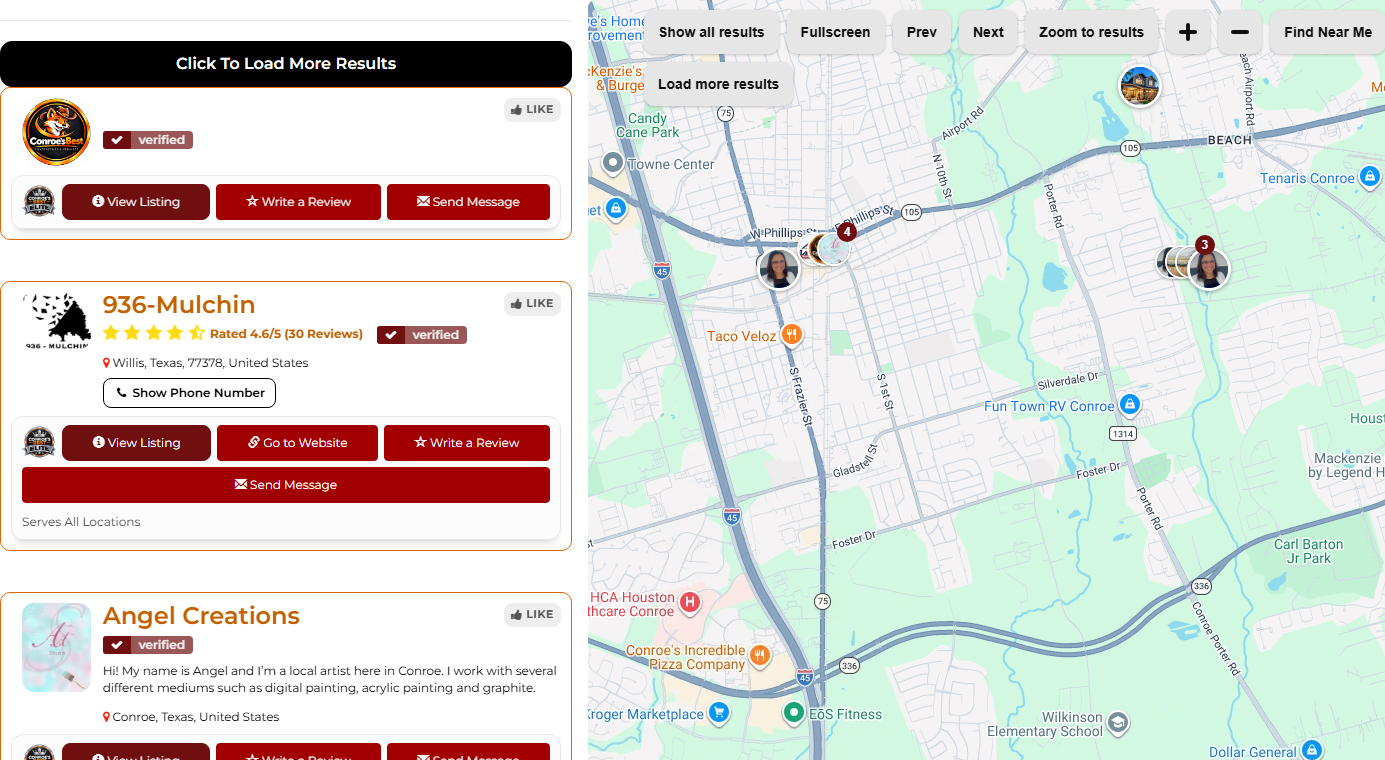
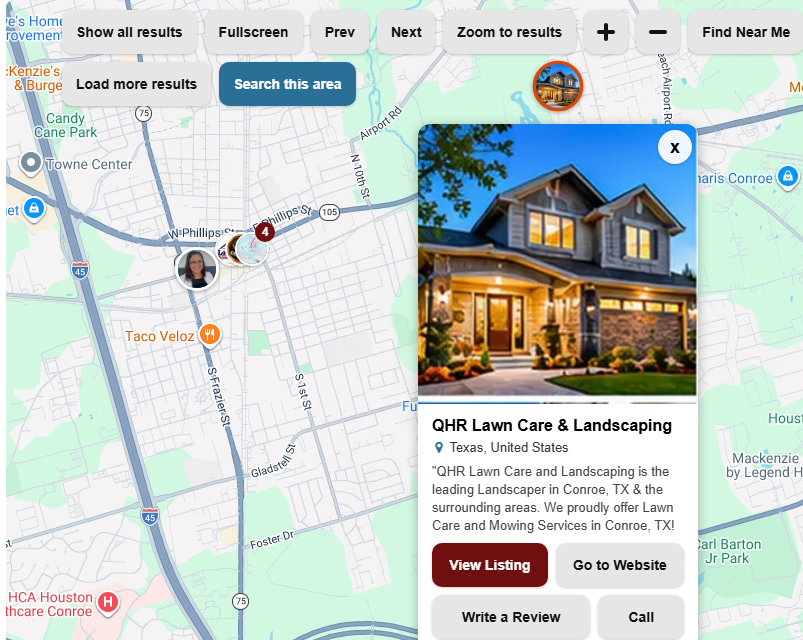
Every member shows as a pin with their photo. Busy areas gather into groups or a heatmap, and a tap on a pin opens a card with that member's details and buttons.
Built for owners of Brilliant Directories sites whose visitors look for members near a place.
Every part switched on or off in your panel

What a visitor sees on your directory.
The map sits beside the results or across the top, and follows the search the visitor ran.
A map that follows the search.
Out of the box the results map shows plain pins. DirectoryLocations shows who each member is, and keeps up as the visitor moves around.
Faces, not dots
Each pin shows the member's map photo, profile photo or logo, and members with none show their initials, your logo or a picture you choose.
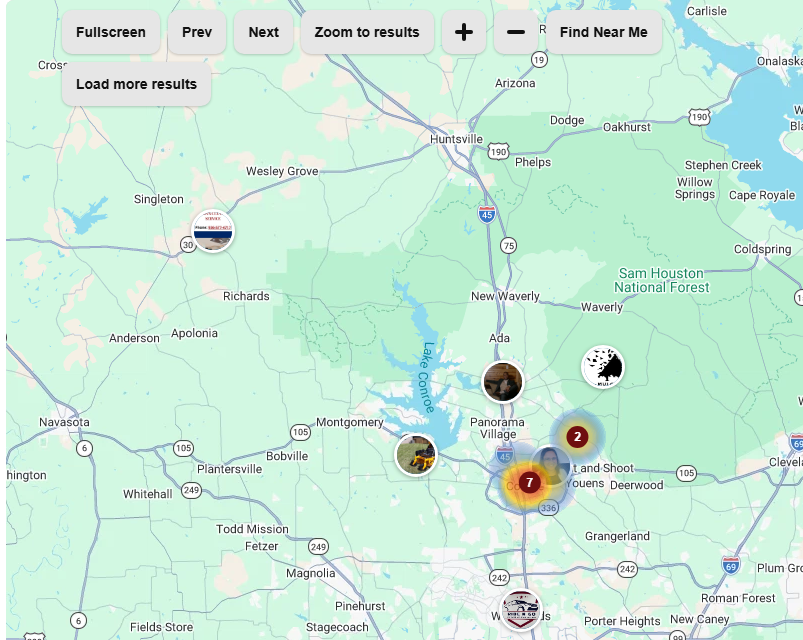
Busy areas stay readable
Nearby members gather into a group with their photos and a count, or the map shows a heatmap and switches to photo pins up close.
A card on every pin
A tap opens the member's details with their buttons, such as View Listing, Send Message, Directions and Call.
Search where they look
Search this area runs the search again for the part of the map on screen, and Load more results adds the next listings to the map.
Where it suits your page
Beside the results, across the top of the page, in a pop-up, or when the map icon is clicked.
Your look, your map
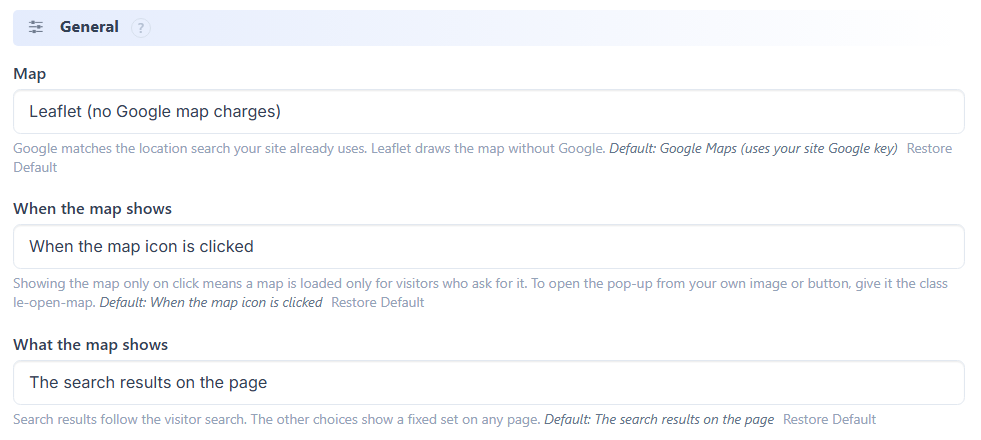
Google Maps or the free Leaflet map, a map look to match your site, and your own pin shapes, sizes, colors and movement.
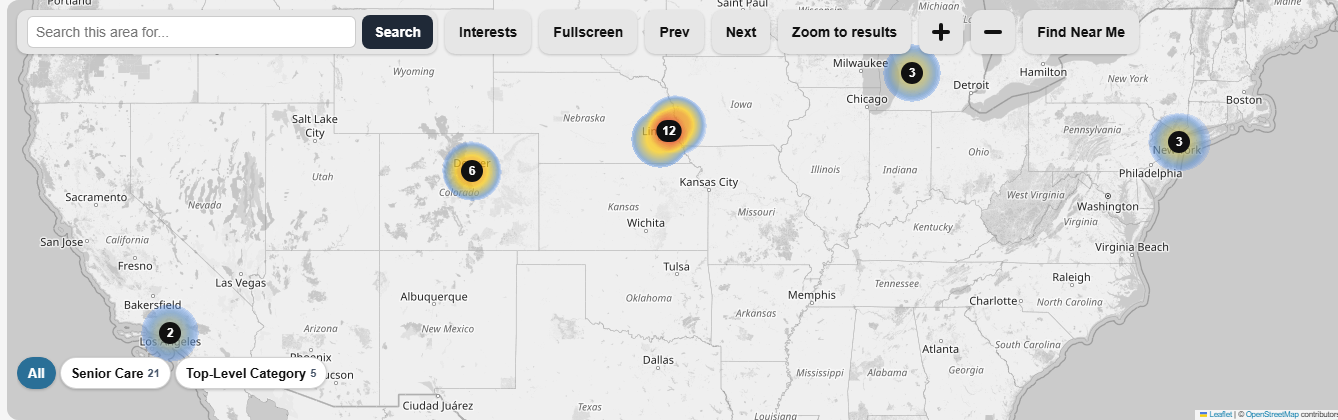
A map over the whole page, with category chips.
The map can run the full width above the results and sidebar, with a chip for each category in the results and a search box on the map.
A map that knows hours and filters.
On a site that runs our other plugins, the map uses what they add.


Open or closed on the map
Member cards on the map show Open or Closed and the hours for today, under the name or in a box beside the buttons.


Filters on the full-screen map
With your search filter on the page, Fullscreen puts the filters in a panel beside the map, with a Filters button that counts the filters in use.
Out of the box, the map is a page of plain pins.
Brilliant Directories draws a plain pin for each result. Members at the same spot sit on top of each other with no group or count, the pop-up is the same fixed box for everyone, and opening the map view hides the list of results, so a visitor switches back and forth to compare.
DirectoryLocations replaces that map on the same pages. Each setup below is built from its own settings, with the steps to build it.
The map beside the results
The results stay on one side and the map on the other. Clicking a pin scrolls to that listing and outlines it, and pointing at a listing outlines its pin.
Build it
- In the Locations Engine settings, set When the map shows to Always, beside the results, or to Beside the results when the map icon is clicked.
- Set the Map column width and the Map side.
- Turn on Link the results list and the map.
A heatmap that turns into faces
Zoomed out, each area glows by how many members are there, with a count on it. Zoom in and the heat gives way to photo pins.
Build it
- Set How members show on the map to Heatmap, then photo pins up close.
- Set Show photo pins from zoom to the zoom where photos take over.
- Turn on Show a listing on its own as its pin, not a heat spot.
Featured members stand out
Members on a paid plan, or in a category or sub category, get their own pin look, such as a colored ring or a gentle glow, and a pin key tells visitors what each look means.
Build it
- On the Pins tab, add a pin rule for a membership plan, a category or a sub category.
- Pick the rule's look and, if you like, a Pin movement such as Glow.
- Give the rule a Label in the pin key and turn on Show a pin key on the map.
Search the part of the map on screen
A visitor drags the map to another part of town and clicks Search this area, and the results and the map show the members there. Show all results brings back the full list.
Build it
- Turn on Show Search this area.
- Turn on Show Search as I move the map to search on every move.
- Choose whether the map then opens on the area searched or on every result.
Members who travel to the customer
A member based in one town who serves another shows up in that town's search too, with a Serves line on their card, and their service areas show on the map while the card is open.
Build it
- Turn on Show members who serve the searched area.
- Members add their service areas to their listing.
- Turn on Show the service areas when a card opens.
Set it up in the panel you already use.
Everything lives in DirectoryCustomize under My Widgets, in the Locations Engine settings.
Run down your checklist.
The things buyers compare when they choose a map for their directory. DirectoryLocations does all of these.
-
Member photos as pinsA map photo, profile photo or logo on each pin, and initials, your logo or a picture you pick for the rest.
-
Groups with faces and countsNearby members gather into a group showing their photos and how many there are.
-
A heatmap for busy areasAreas glow by how many members are there, then switch to photo pins up close.
-
A card on every pinThe member's details with View Listing, Send Message, Directions and Call.
-
Beside the results or across the topBeside the list, across the page top, in a pop-up, or when the map icon is clicked.
-
Search this areaSearch where the map is, as the map moves, or within a distance of a spot.
-
Pins by plan and categoryPin rules for a plan, a category or a sub category, with a pin key for visitors.
-
Members and postsSearch results, all members, posts of the types you pick, or both on one map.
-
Service areasMembers who serve the searched area show there too, with a Serves line.
-
Fullscreen with filtersA full-screen map with a Map and Satellite switch and your search filters beside it.
-
Google or a free mapGoogle Maps with your site key, or the Leaflet map with no Google map charges.
A map you set up and change yourself.
Built for owners who want a better map on every search without paying for custom code each time.
Change it any time yourself
Pick where the map shows, the pins, the card and the words from the settings panel whenever you like. No new order, quote or developer.
The list stays on screen
Visitors compare listings and see where they are at the same time.
Every new version, on every plan
Updates arrive on their own through DirectoryCustomize. Nothing to reinstall.
Kept working as BD changes
When Brilliant Directories updates its code, we update the plugin to match.
Help for as long as you have it
Technical issues with the plugin are covered on every plan, for as long as you have it.
Works with your other plugins
With DirectoryHours the card shows who is open, and with DirectoryFilter the filters sit beside the full-screen map.
Monthly, yearly or a one-time fee.
Pick the way you would rather pay. All three get every new version.
Month to month
Monthly
$20
Per month, cancel any time
- Every feature and every new version.
- Stop whenever you like.
Two months free
RecommendedYearly
$200
Per year
- Every feature and every new version.
- $40 less than paying monthly.
Yours to keep
One-time
$640
Once, no renewal
- Every feature and every new version, for good.
- No bill after the first.
Technical issues with the plugin are covered on every plan. Other help and changes are billed at our normal rates.
One price covers the map on every search.
- Photo pins, groups, the heatmap and the member card.
- Search this area, Load more results, Prev, Next, Find Near Me and Fullscreen.
- Pin rules, your map look, and your own words on every button.
- Every new version, kept working as Brilliant Directories changes.
The short answers.
Do I need a Google Maps key?
What do members without a photo show?
Can events and other posts go on the map?
Does it work on member profiles?
Can the map look different on some pages?
What is the difference between the three plans?
Show visitors who is near them.
Questions about setting it up? The help pages walk through every setting, or send us a message.